
We take hourly backups of your website and also give you the ability to create backups to your own offsite storage. This article explains how to restore from the hourly backups and how to set up your own scheduled offsite backup.
Websites change all the time: new pages go live, content gets edited and, on WooCommerce sites, new orders come in. A nightly backup can miss a full day of those changes, which is why the platform backs up every hour. Your own offsite backup is completely independent of the hourly system, and we strongly recommend every customer sets one up so you always own an up to date copy of your site.
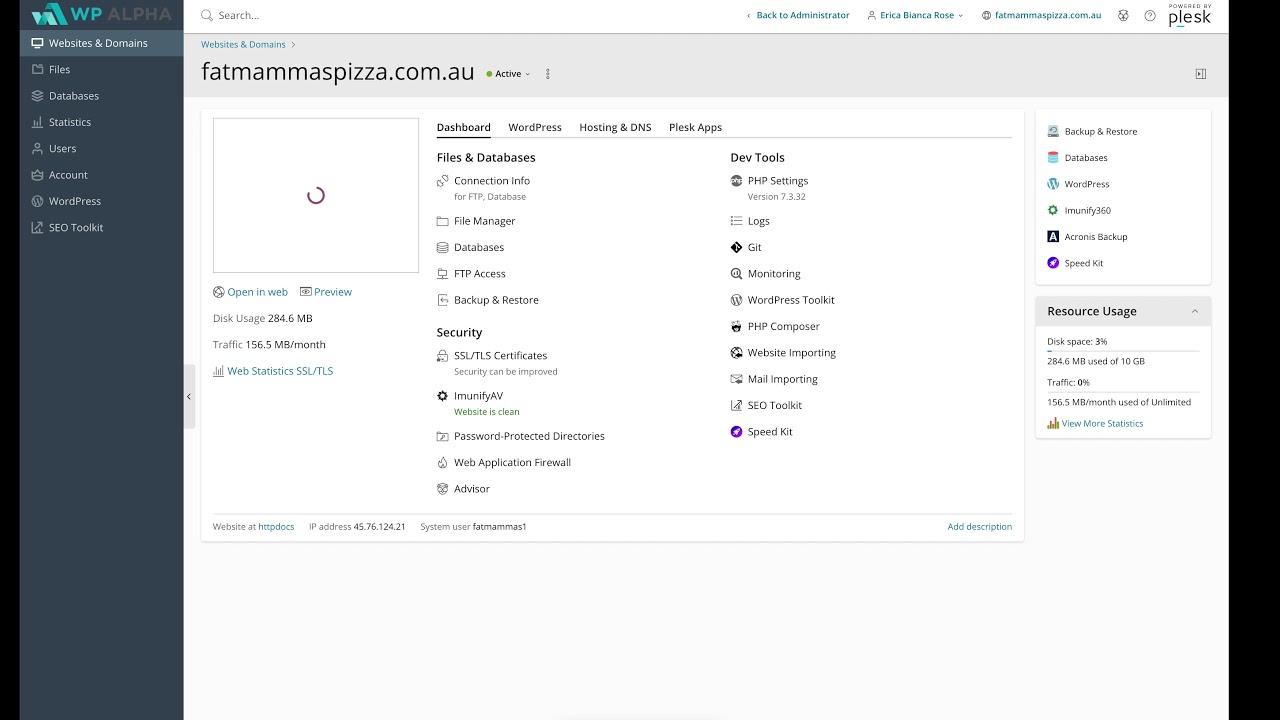
Step by step: restoring from the hourly backups
- Log in to the hosting console and open your site. If the sidebar is hidden, click the toggle icon to show it.
- In the sidebar, click Acronis Backup. The hourly backups run automatically and are listed by time.
- Click into the backup you want. You can recover individual files, individual folders, all of the website files or the entire database.
If you are not sure what to restore, contact support and we can run the recovery for you or point you in the right direction.
Step by step: setting up your own offsite backup
- Open Backup and Restore. This is a separate backup system from the hourly Acronis backups.
- Click Remote Storage Settings and connect your storage. Dropbox and Google Drive suit most people. Amazon S3 and FTP are also available if you are more technical.
- Go back to Backup and Restore and click Schedule.
- Choose how often the backup runs: daily, weekly or monthly. Daily suits a site that changes a lot; weekly is usually fine for a site that rarely changes.
- Choose how often to take a full backup. For example, a daily schedule with a weekly full backup takes an incremental backup every day and a full backup once a week.
- Set the start time outside the site’s business hours.
- Click Activate. Optionally, set up email notifications so you hear about any problems, and exclude any files you do not need. Then click OK.
Things to check
- Storage space. Check Disk usage in the console. A small business site of a few hundred megabytes fits comfortably in a free Dropbox or Google account.
- Timing. Pushing files offsite takes some processing and can slow the site somewhat while it runs, so schedule it at night.
- Incremental backups only hold the changes since the previous backup, so a restore needs the full backup plus the incrementals that follow it.
- Status and restores. Your offsite backups appear in Backup Manager. To restore one, open Backup Manager, click the backup and select what you want to restore.
If you need help, connect your remote storage location as shown in the video, then contact support and we will help you configure a nightly backup to it. Our support team can help via a ticket from the client area or live chat.